Built for JetKVM hardware only

JetKVM, Meet iPhone & iPad.
Finally Native, Powered By Jet Remote.

Jet Remote brings native iOS control to JetKVM devices by treating your screen like a precision trackpad. Your finger drives the cursor naturally, making complex tasks like dragging, right-clicking, and scrolling effortless on a touchscreen.

Everything that matters.

Jet Remote is engineered natively for iPhone and iPad — not ported, not wrapped. Every interaction is designed around the hardware you already own.

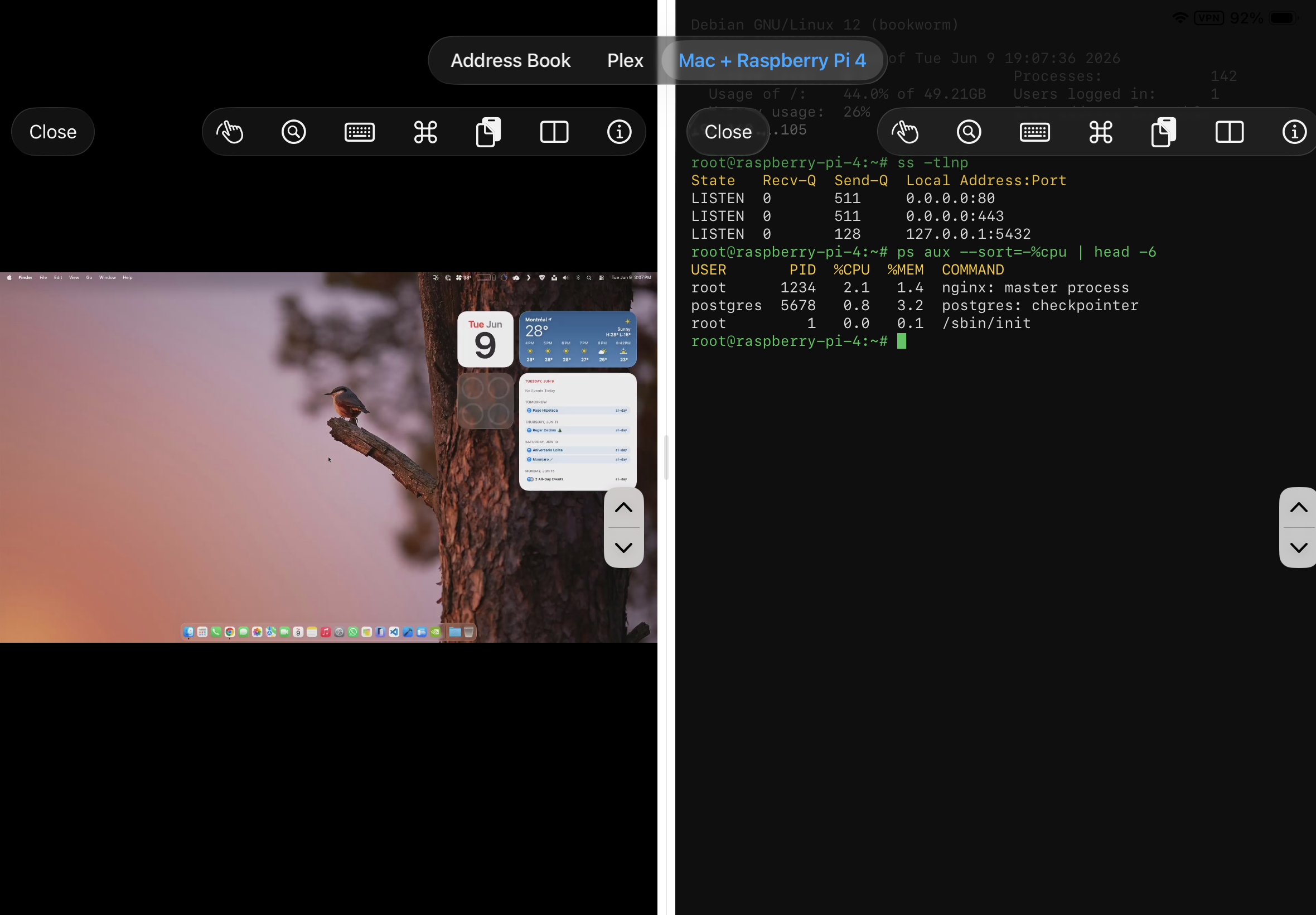
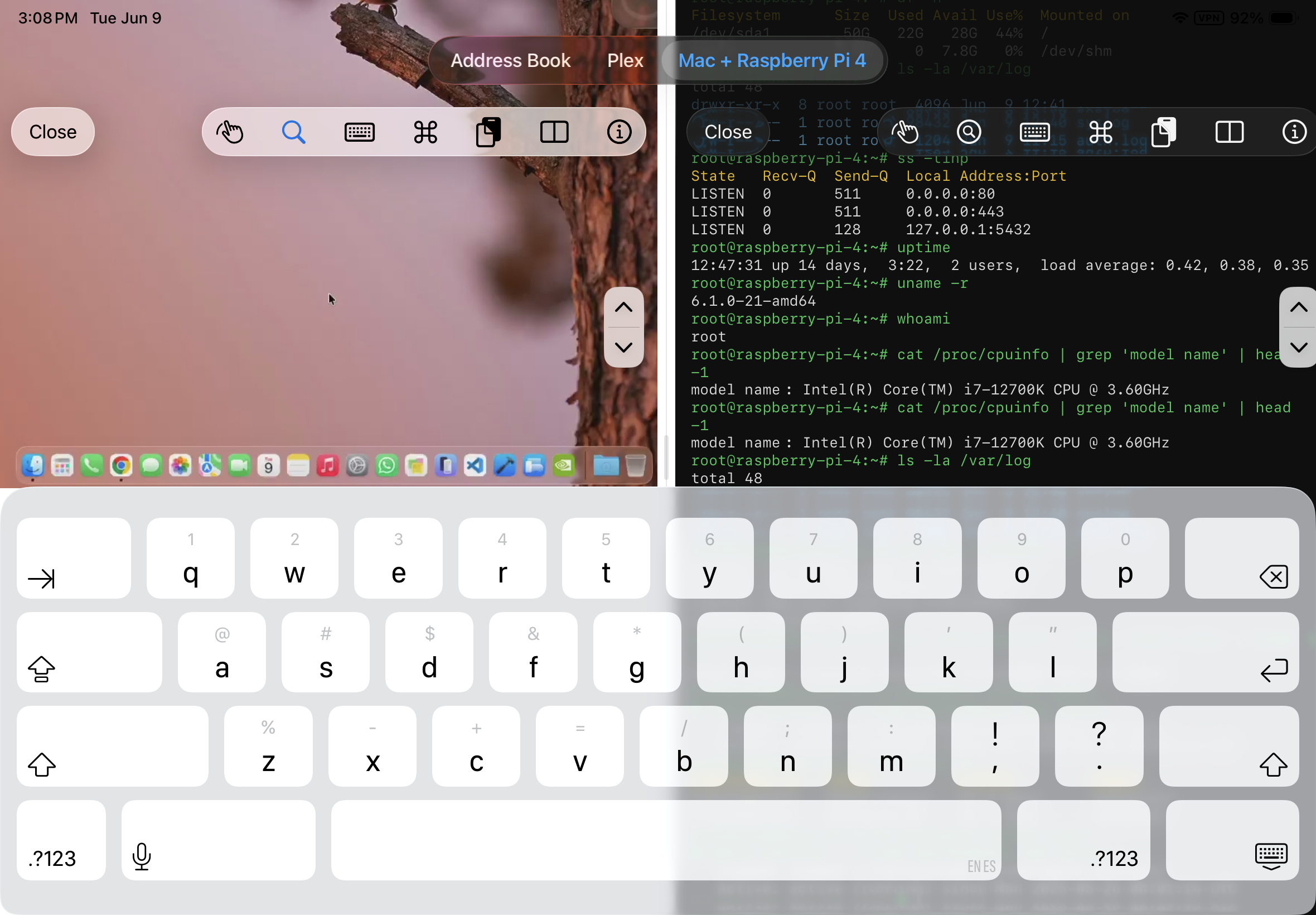
Split View — Two Sessions at Once

On iPad, run two remote sessions side by side in Split View. Control two machines simultaneously without switching tabs — ideal for comparing outputs, transferring files between systems, or monitoring a second machine while working on another.

Trackpad & Mouse Together

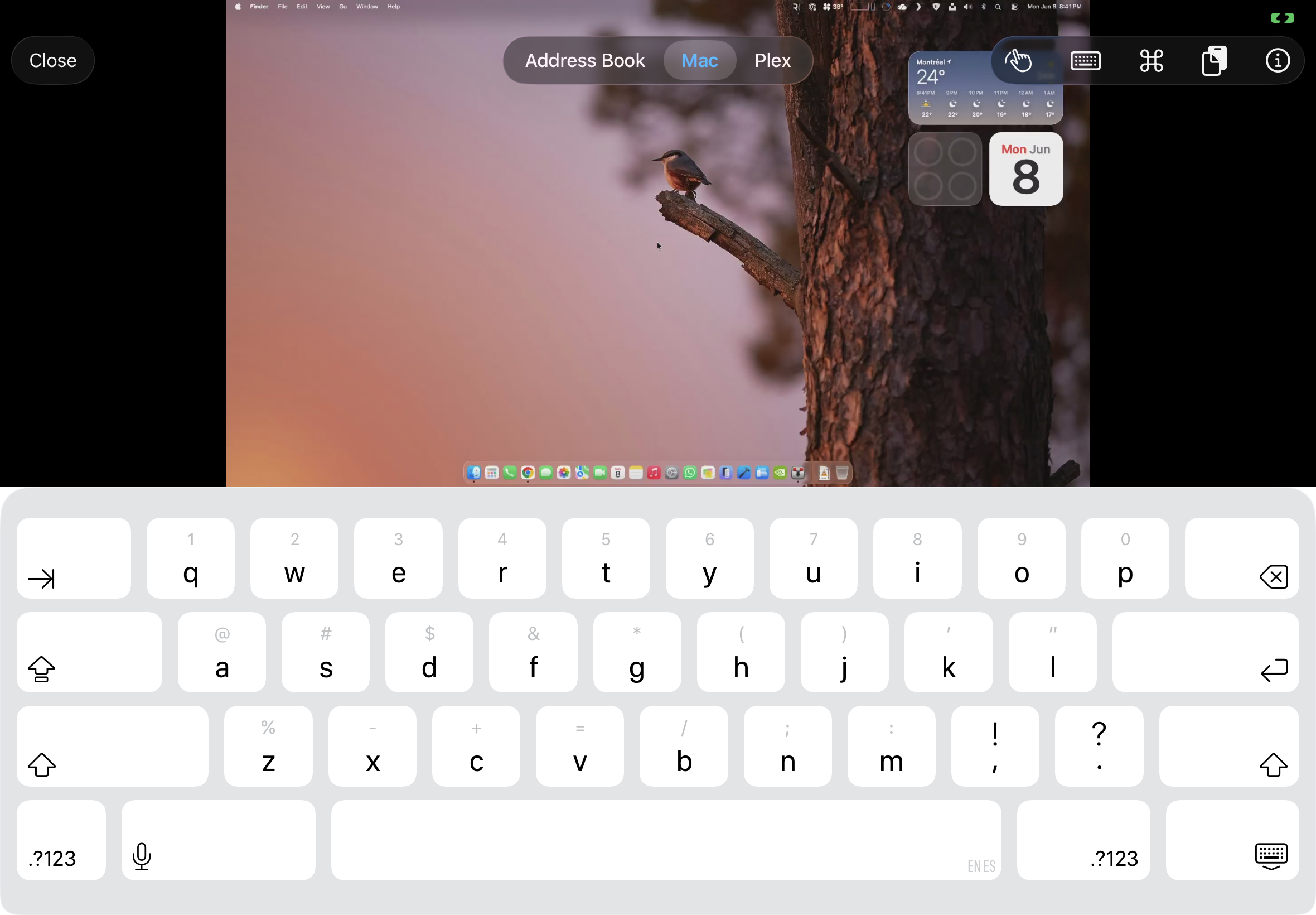
Two input modes, always in sync. Trackpad Mode moves the cursor relatively with one finger — just like a laptop trackpad. Mouse Mode places the cursor exactly where you click. It also enables a seamless transition when using a connected Bluetooth mouse or an iPad case with an integrated trackpad. Switch between modes at any time.

Multi-Device Management

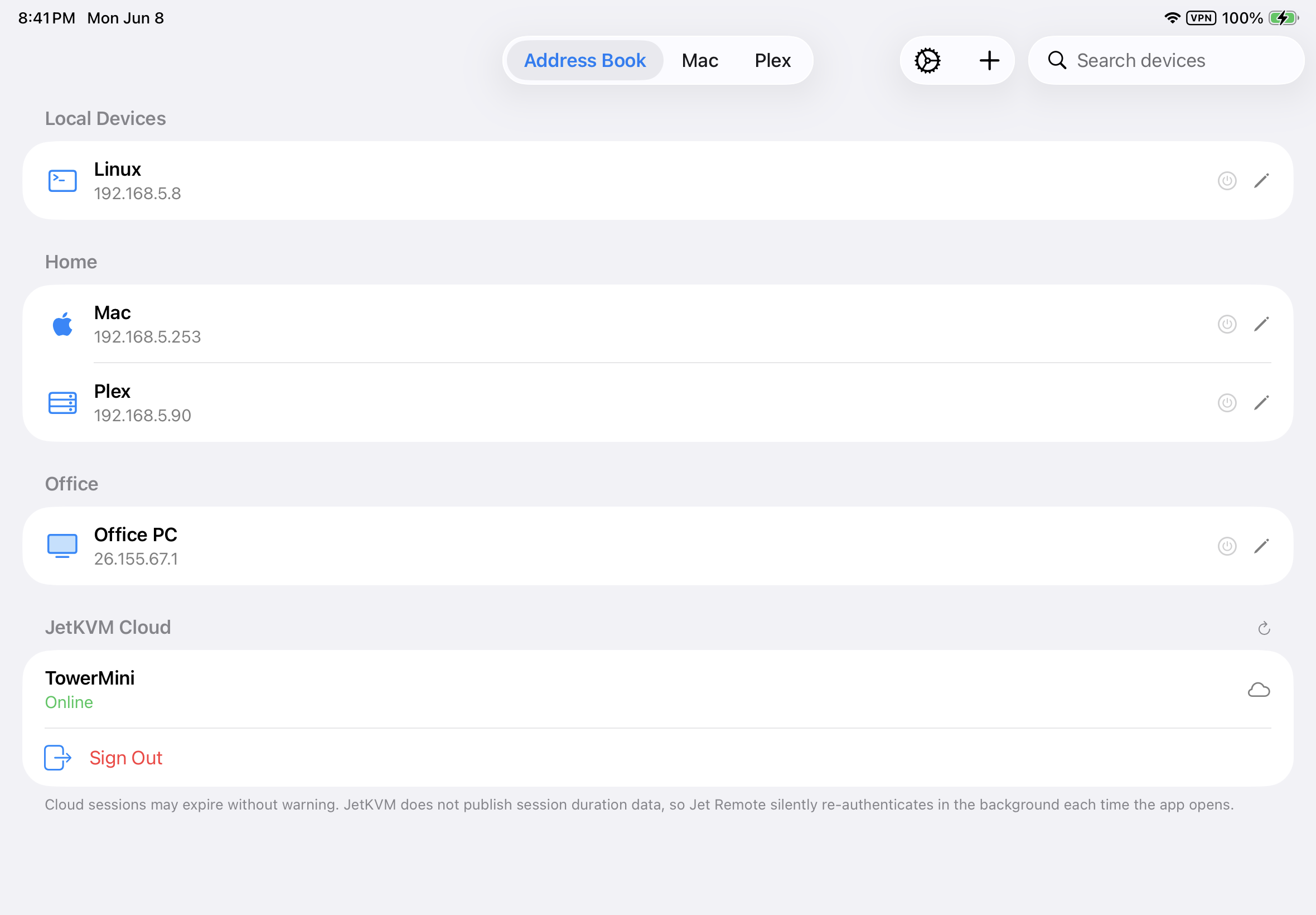
Save and organize all your JetKVM devices in an Address Book with custom names, icons, and sections — ideal for managing large fleets. Your Address Book can be backed up and synced, so you can have different profiles. Wake-on-LAN powers machines remotely without leaving the app.

Tab Navigation

Open multiple remote sessions at once and switch between them instantly using native tab navigation on iPad. Each session runs independently — no need to reconnect when switching.

Flexible Connectivity

Connect directly over your local network with no internet required. Sign in to JetKVM Cloud for remote access from anywhere. Tailscale users can also reach their devices over a private network without any port forwarding. Password-protected and open devices are both supported, with automatic reconnect.

Smart Resolution Matching

Jet Remote detects the resolution of your remote display and maps it precisely to your screen — the technical foundation that makes Trackpad Mode work with pinpoint accuracy.

Why native matters.

The JetKVM Web UI was built for browsers, not touchscreens. We are changing that.

Jet Remote

Native iPad App

  • Precision input mapped for touch — cursor follows your finger naturally
  • Right-click with two fingers, anywhere on screen
  • Click & drag — move windows, select text, drag files
  • Hardware keyboard passthrough + special keys toolbar
  • Address Book with icons, sections & optional iCloud backup
  • Local network or JetKVM Cloud — your choice
  • Metal-accelerated video — low latency, high frame rate
Web UI

Browser-Based Touch

  • Absolute tap — cursor jumps to touch point*
  • Unreliable right-click*
  • Unreliable scrolling*
  • Unreliable click & drag*
  • Browser intercepts keys — limited passthrough*
  • Browser-decoded WebRTC — higher CPU usage

* Applies to touch-only use. A keyboard & mouse case resolves these limitations.

iPhone & iPad.
Launching June 22.

Jet Remote launches on iPhone and iPad on June 22. Download it from the App Store.

Requires iPhone 8 or later, or iPad (5th generation) or later · iOS / iPadOS 16.0 or later

Beta testers wanted — apply here to get early access.

Trackpad Mode — Gestures

Zoom gesture Zoom Pinch two fingers together to zoom out, or apart to zoom in.
Mouse move gesture Mouse move Place one finger on the screen and drag to position the mouse cursor (offset from under your finger so you can always see it).
Left click gesture Left click Tap with one finger to click the left mouse button at the point the mouse cursor is positioned (not your finger).
Right click gesture Right click Tap with two fingers to click the right mouse button at the point the mouse cursor is positioned (not your finger).
Drag and drop gesture Drag & drop / Select text Tap once to select anything, hold the second tap for half a second, and drag to move a desktop object (such as a dialog box or icon), or select a specific body of text.

Smart Resolution Matching — How it works

Remote computers typically output widescreen resolutions — 1920×1080, 2560×1440, and so on. Your iPad screen has a much squarer aspect ratio. Without correct mapping, every tap and cursor movement is misaligned: you touch the left side of the screen but the click lands somewhere else entirely.

Remote display
1920 × 1080
maps to
iPad display
2048 × 1536
Widescreen remotes

Most computers and servers output at 16:9 or 16:10 — much wider than the iPad's 4:3 screen.

Coordinate translation

Jet Remote reads the remote resolution and translates every touch coordinate so it lines up exactly with what you see on screen.

Pinpoint accuracy

The result: clicks and trackpad movements land exactly where you intend — even in the corners and edges of the remote screen.

Get in touch.

Have a question or found a bug? Send a message and we'll get back to you.

Known Issues

Working as Designed

Cloud Session Expiry

JetKVM limitation

What happens
JetKVM Cloud sessions expire after ~1 hour of server inactivity.
Root cause
Enforced server-side by JetKVM/BuildJet. The app cannot prevent this.
Mitigation
Jet Remote sends a heartbeat ping every 45 min while the app is active.
Expected triggers
App backgrounded for more than 1 hour; device locked overnight.
User impact
"Session expired — sign in again" prompt on next open.
Workaround
Tap Sign in again — one tap, no password needed if the browser session is still alive.
Working as Designed

Passkeys Not Supported for JetKVM Cloud Sign-In

OS-level restriction

What happens
Google sign-in via passkeys is blocked when authenticating inside the app.
Root cause
Apple requires apps to declare a webcredentials:accounts.google.com entitlement for passkeys to work in an in-app browser. Google must also explicitly list the app in their AASA file — something Google does not grant to third-party apps. The passkey flow is blocked at the OS level regardless of the browser used.
Workaround
On the Google sign-in page, tap Try another way and use your password, an email verification code, or a 2FA authenticator code instead. All other sign-in methods work normally.